> ## Documentation Index
> Fetch the complete documentation index at: https://docs.byzantine.fi/llms.txt
> Use this file to discover all available pages before exploring further.
# Create & secure your account
## Step 1: Sign up
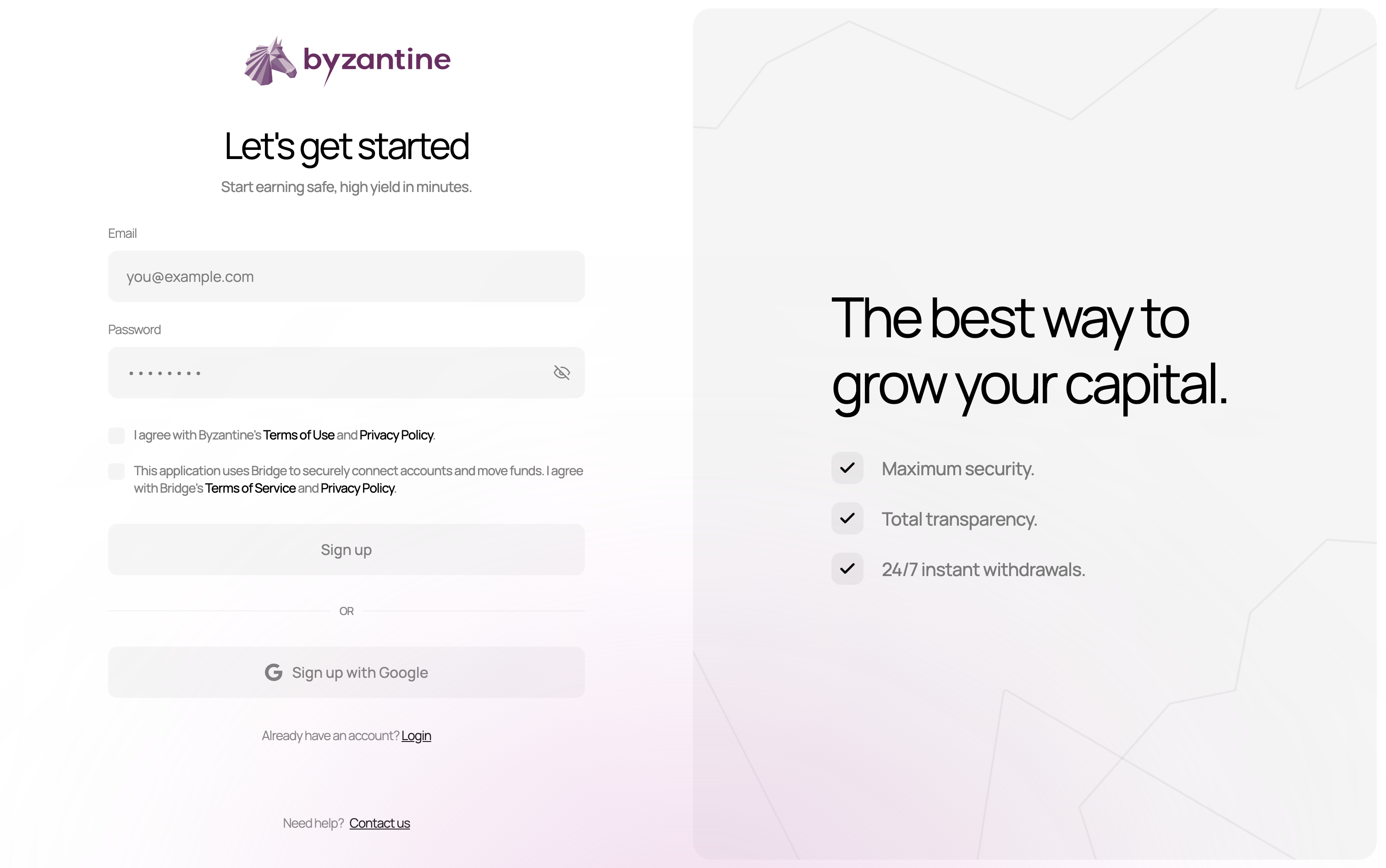 1. Go to [**app.byzantine.fi/signup**](https://app.byzantine.fi/signup)
2. Enter your email address (e.g., [**your-email@company.com**](mailto:your-email@company.com)).
3. Create a secure password.
4. Check the boxes to agree to:
* Byzantine's Terms of Use and Privacy Policy
* Bridge's Terms of Service and Privacy Policy (Stripe company, payment processor)
**Note:** You can add multiple users to the same account later. The person creating the account doesn't need to be the ultimate beneficial owner.
## Step 2: Verifying your email
1. Go to [**app.byzantine.fi/signup**](https://app.byzantine.fi/signup)
2. Enter your email address (e.g., [**your-email@company.com**](mailto:your-email@company.com)).
3. Create a secure password.
4. Check the boxes to agree to:
* Byzantine's Terms of Use and Privacy Policy
* Bridge's Terms of Service and Privacy Policy (Stripe company, payment processor)
**Note:** You can add multiple users to the same account later. The person creating the account doesn't need to be the ultimate beneficial owner.
## Step 2: Verifying your email
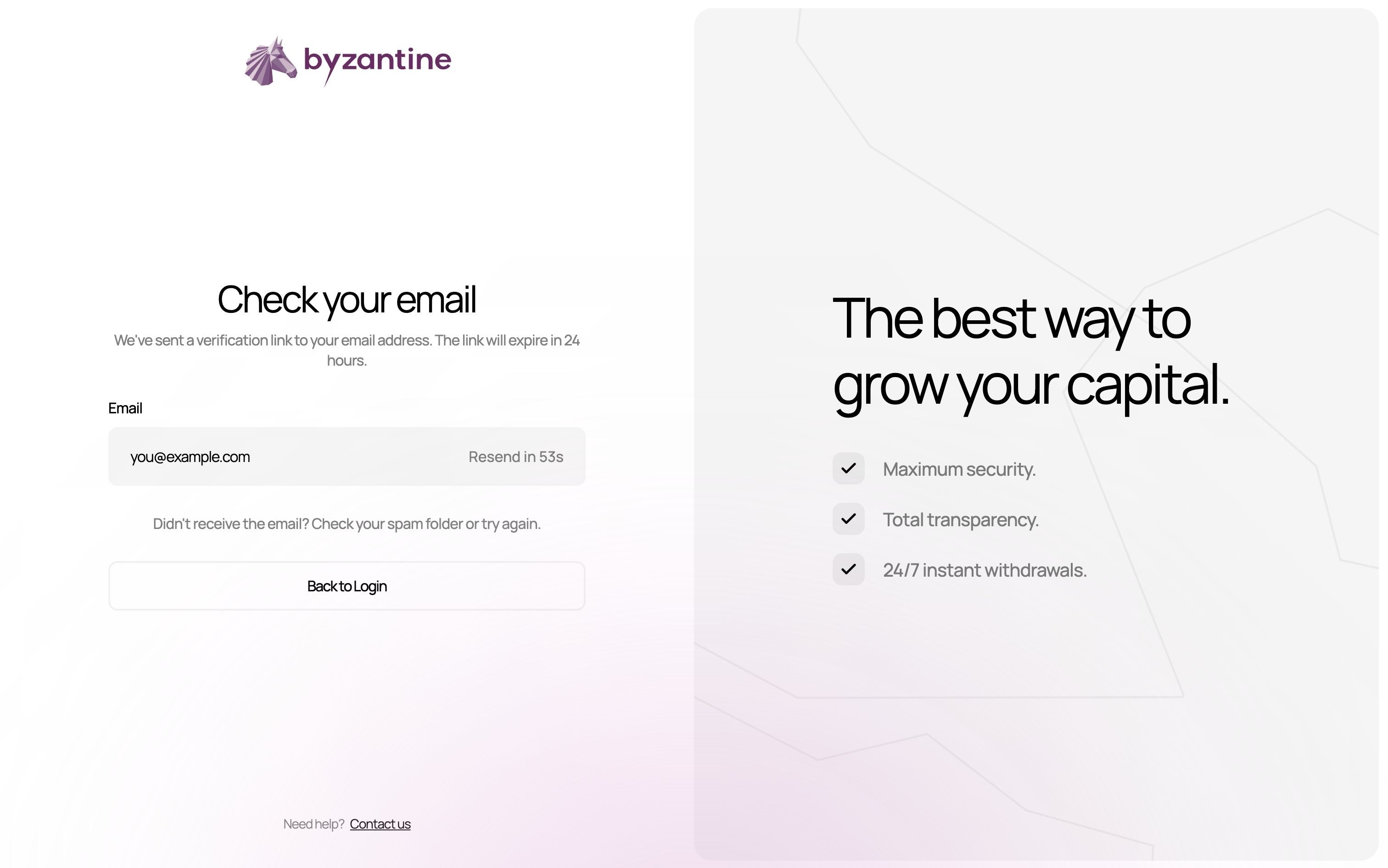 After creating your account, you'll receive a verification email from [**info@byzantine.fi**](mailto:info@byzantine.fi).
1. Check your inbox (and spam folder).
2. Click **"Verify my email"**.
3. You'll be automatically redirected to the next step.
**Verification links expire within 24 hours.** If you miss the window, click "Resend" on the verification page.
## Step 3: Choosing your account type
After creating your account, you'll receive a verification email from [**info@byzantine.fi**](mailto:info@byzantine.fi).
1. Check your inbox (and spam folder).
2. Click **"Verify my email"**.
3. You'll be automatically redirected to the next step.
**Verification links expire within 24 hours.** If you miss the window, click "Resend" on the verification page.
## Step 3: Choosing your account type
 ### **Company vs Individual**
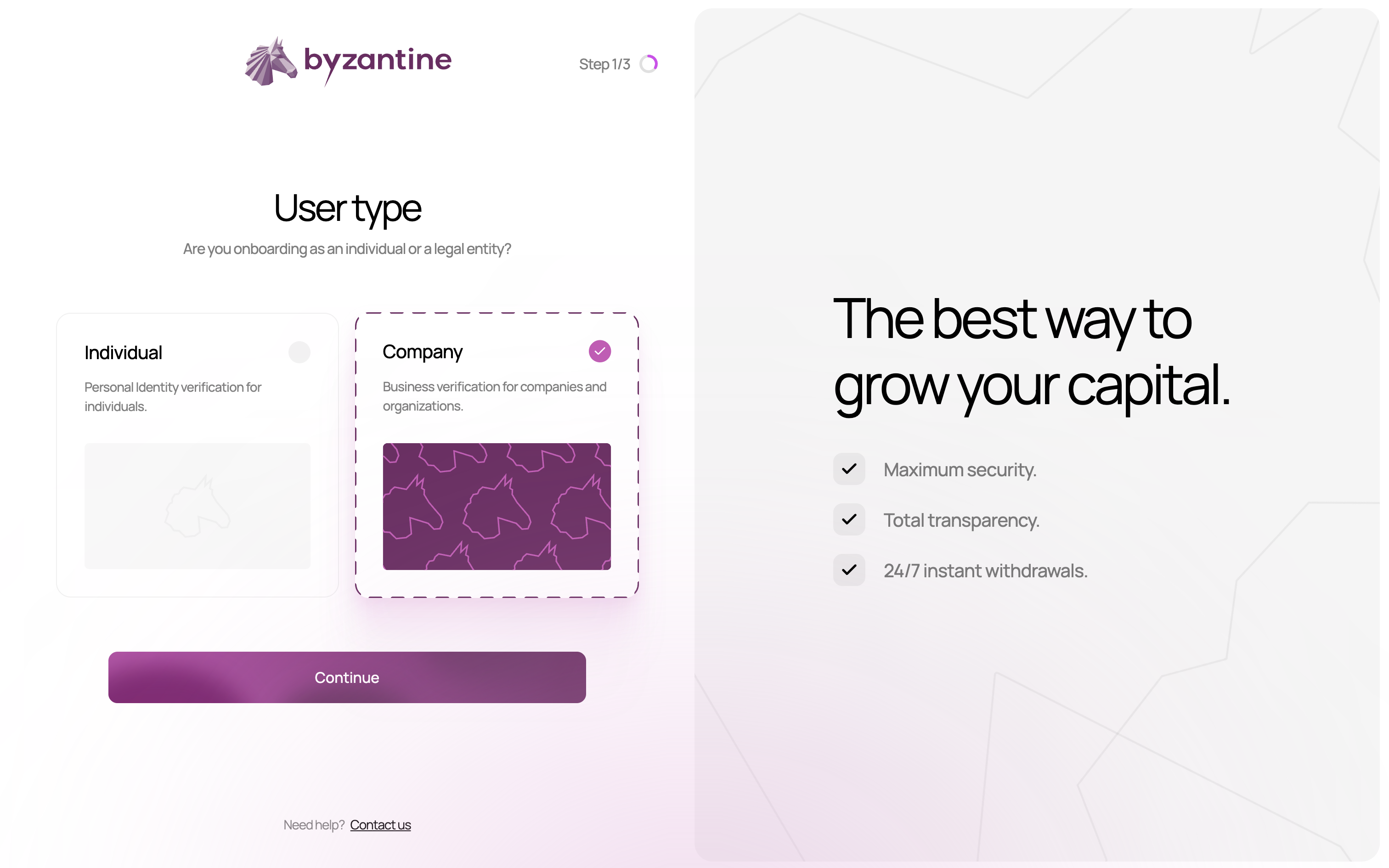
**Choose "Company" if:**
* Funds belong to a legal entity (SAS, SARL, holding company, family office structure).
* You're investing on behalf of a corporate entity.
* The bank account sending funds is in a company name.
**Choose "Individual" if:**
* You're investing personal funds.
* The bank account is in your personal name.
**For family offices:** Most family offices should select **Company**, even if the structure is a holding company with no commercial activity.
## Step 4: Setting up security
### **Company vs Individual**
**Choose "Company" if:**
* Funds belong to a legal entity (SAS, SARL, holding company, family office structure).
* You're investing on behalf of a corporate entity.
* The bank account sending funds is in a company name.
**Choose "Individual" if:**
* You're investing personal funds.
* The bank account is in your personal name.
**For family offices:** Most family offices should select **Company**, even if the structure is a holding company with no commercial activity.
## Step 4: Setting up security
 ### Account security options
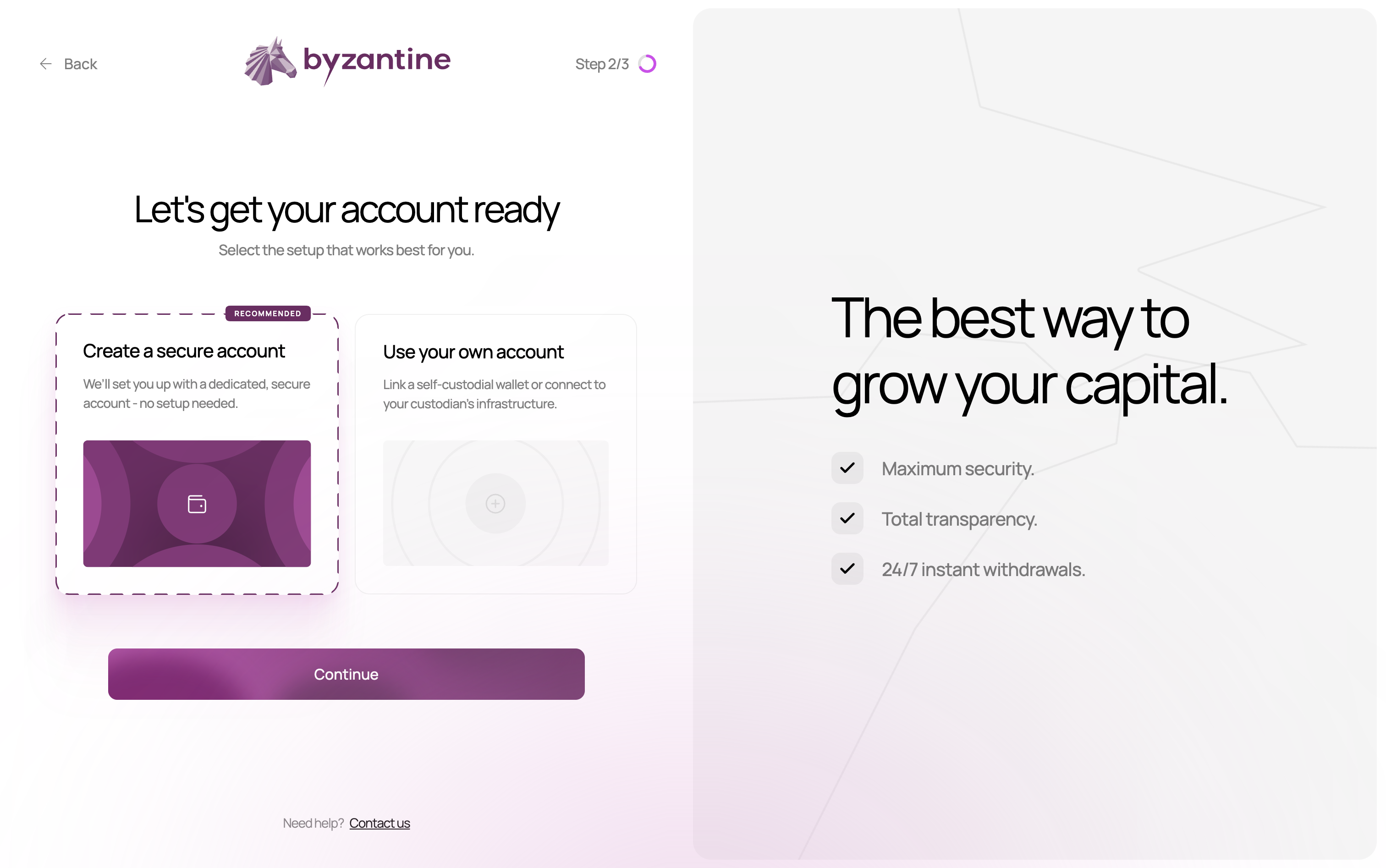
We **recommend "Create a new account"** (default option) for maximum security:
* **Create a new account:** Everything's handled for you, just sign up and start earning.
* **Use an existing account:** For advanced users only.
### Passkey authentication
After selecting "Create a secure account," you'll set up a **passkey**:
1. Your browser will prompt you to create a passkey.
2. This creates a unique cryptographic key stored securely on your device.
3. You'll use this to authorise important actions (deposits, withdrawals, inviting team members, etc.).
**Passkeys are more secure than passwords** — they can't be phished, guessed, or stolen in a data breach. They work with Face ID, Touch ID, or your device PIN. If you ever lose access to your passkey, Byzantine can help you reset it — see [Passkey reset](/passkey-reset). To learn more about how passkeys work, see [Understanding passkeys](/documentation/account-management/passkeys).
## Step 5 (optional): Two-factor authentication (2FA)
For an extra layer of security, you can enable two-factor authentication on your account.
1. On the dashboard, click your profile icon and select **Personal settings**.
2. Navigate to the **Security** section.
3. Activate **Two-factor authentication (2FA)**.
4. Scan the QR code displayed on screen with your mobile phone to set up your account's 2FA.
5. Enter the code shown in the app to confirm activation.
**Once 2FA is enabled**, you'll be asked for a code from your authenticator app each time you log in, adding an extra layer of protection to your account.
Two Factor Authentication can only be enabled for credential accounts at the moment. For social accounts, it is assumed that the provider already handles 2FA.
### Account security options
We **recommend "Create a new account"** (default option) for maximum security:
* **Create a new account:** Everything's handled for you, just sign up and start earning.
* **Use an existing account:** For advanced users only.
### Passkey authentication
After selecting "Create a secure account," you'll set up a **passkey**:
1. Your browser will prompt you to create a passkey.
2. This creates a unique cryptographic key stored securely on your device.
3. You'll use this to authorise important actions (deposits, withdrawals, inviting team members, etc.).
**Passkeys are more secure than passwords** — they can't be phished, guessed, or stolen in a data breach. They work with Face ID, Touch ID, or your device PIN. If you ever lose access to your passkey, Byzantine can help you reset it — see [Passkey reset](/passkey-reset). To learn more about how passkeys work, see [Understanding passkeys](/documentation/account-management/passkeys).
## Step 5 (optional): Two-factor authentication (2FA)
For an extra layer of security, you can enable two-factor authentication on your account.
1. On the dashboard, click your profile icon and select **Personal settings**.
2. Navigate to the **Security** section.
3. Activate **Two-factor authentication (2FA)**.
4. Scan the QR code displayed on screen with your mobile phone to set up your account's 2FA.
5. Enter the code shown in the app to confirm activation.
**Once 2FA is enabled**, you'll be asked for a code from your authenticator app each time you log in, adding an extra layer of protection to your account.
Two Factor Authentication can only be enabled for credential accounts at the moment. For social accounts, it is assumed that the provider already handles 2FA.