
Things to try first
Most passkey issues come down to being on the wrong device or browser profile. Before requesting a reset, work through the following.Refresh the page and try again
Refresh the page and try again
The passkey prompt can occasionally fail to appear due to a temporary browser issue. Close the tab, reopen it, and try the action again.
Check your Chrome profile
Check your Chrome profile
Chrome stores passkeys per profile. If you are signed into a different Chrome profile than the one used during account creation, your passkey will not appear. Switch to the correct profile and try again.
Check you are on the right device
Check you are on the right device
Passkeys are tied to a specific device. If the account was created on a laptop, the passkey will not be available on a phone, and vice versa. Return to the original device.
Check your password manager or keychain
Check your password manager or keychain
If you use a password manager (such as 1Password or Google Password Manager) or Apple’s iCloud Keychain, make sure it is signed in and unlocked. Your passkey may be stored there.
How the reset works
The Byzantine team can set up a new passkey on a short call, typically five minutes or less. A call is necessary for security reasons - your passkey authorises transactions on your account, meaning your identity must be confirmed first.1
Open the recovery page
The Byzantine team will direct you to a recovery page in the app during the call. Check that your email and account details are correct, then click Send the code.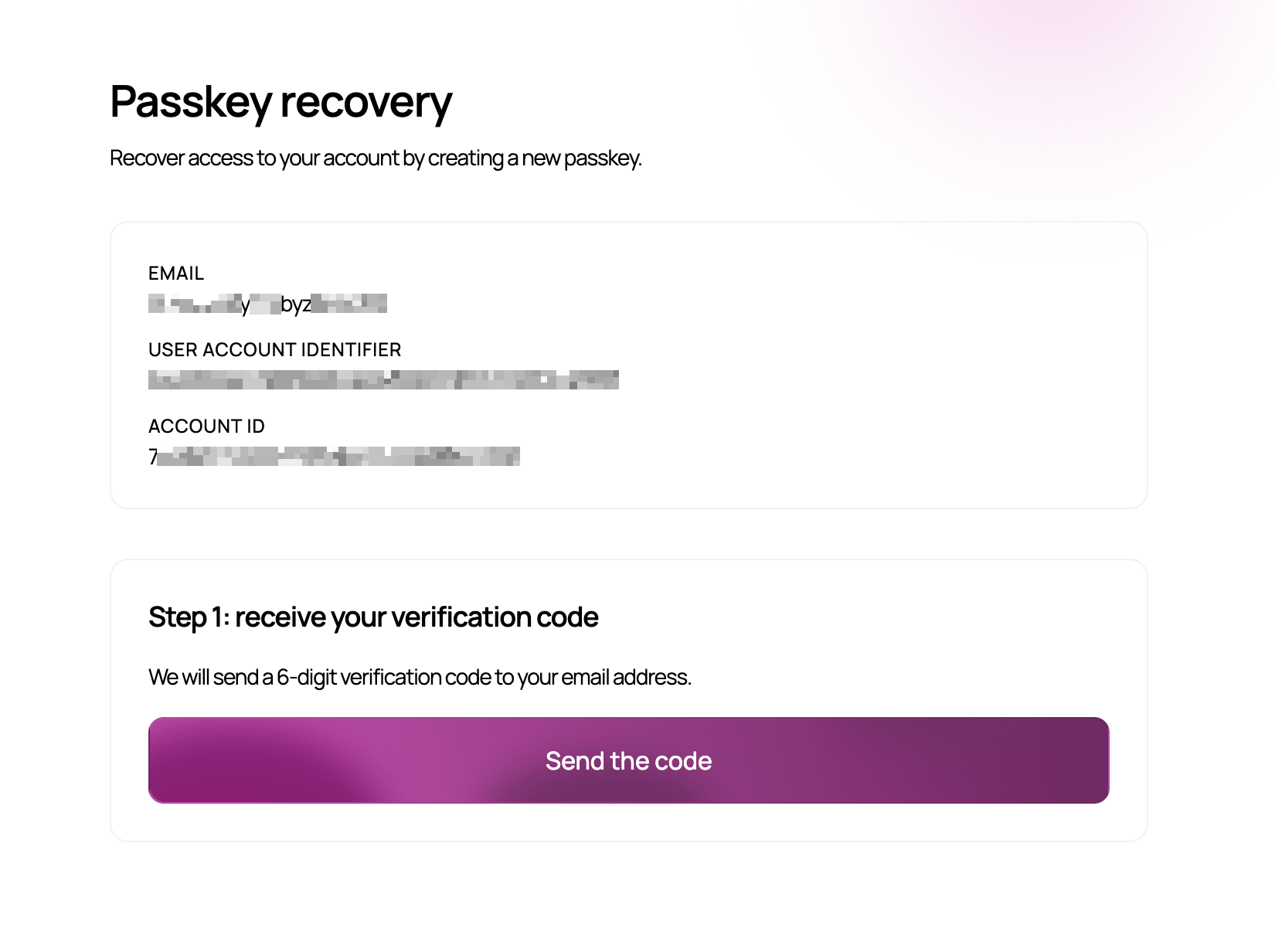
2
Enter the first code
You will receive a 6-digit code after clicking Send the code. Enter it into the recovery page and click Verify the code.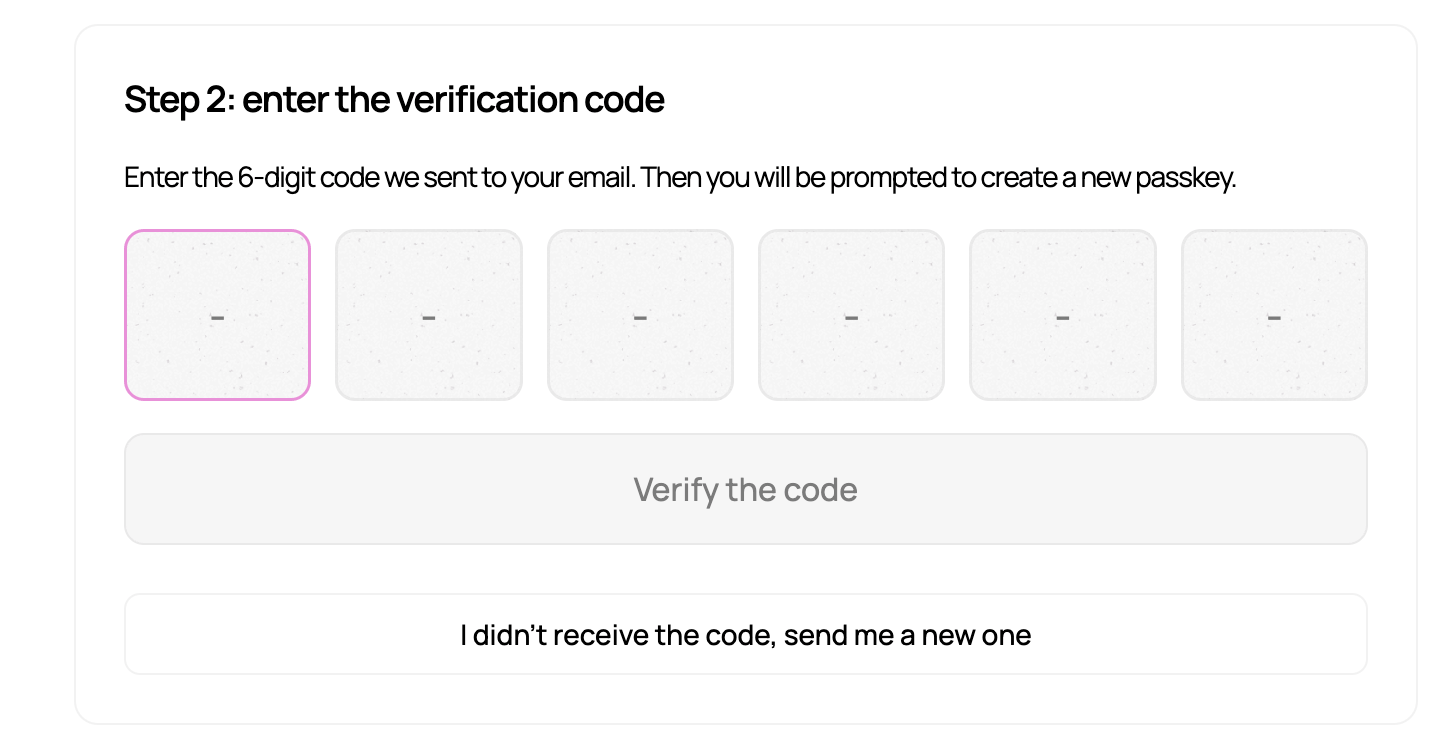
3
Set your new passkey
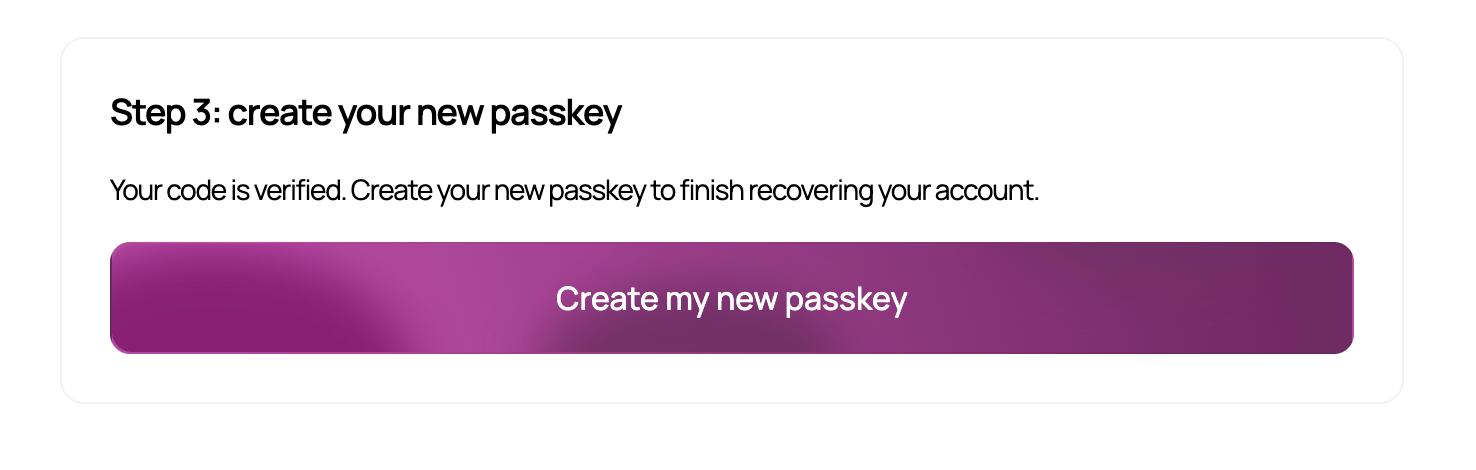
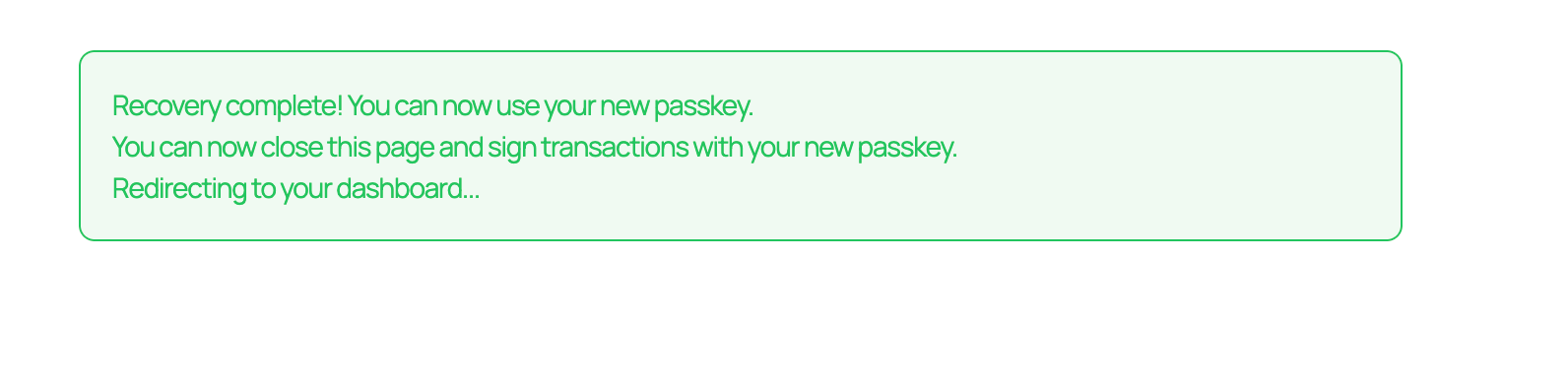
Once your code is verified, click Create my new passkey. Your browser will prompt you to create a new passkey. Confirm with your fingerprint, face scan, or device PIN, just as during initial account setup.